
USB-C Hubs, Chargers and Cables: What to Check Before You Buy
Most desk power problems come down to one hidden number: watts per port, watts the hub keeps, or watts the cable can carry.
5 min read
- Pass-through power for most laptops
- 85W+
- Not 30Hz, which feels laggy
- 4K 60Hz
- From one port to charge a typical laptop
- 65W
- Surge rating for a desk power strip
- 1,000 J+
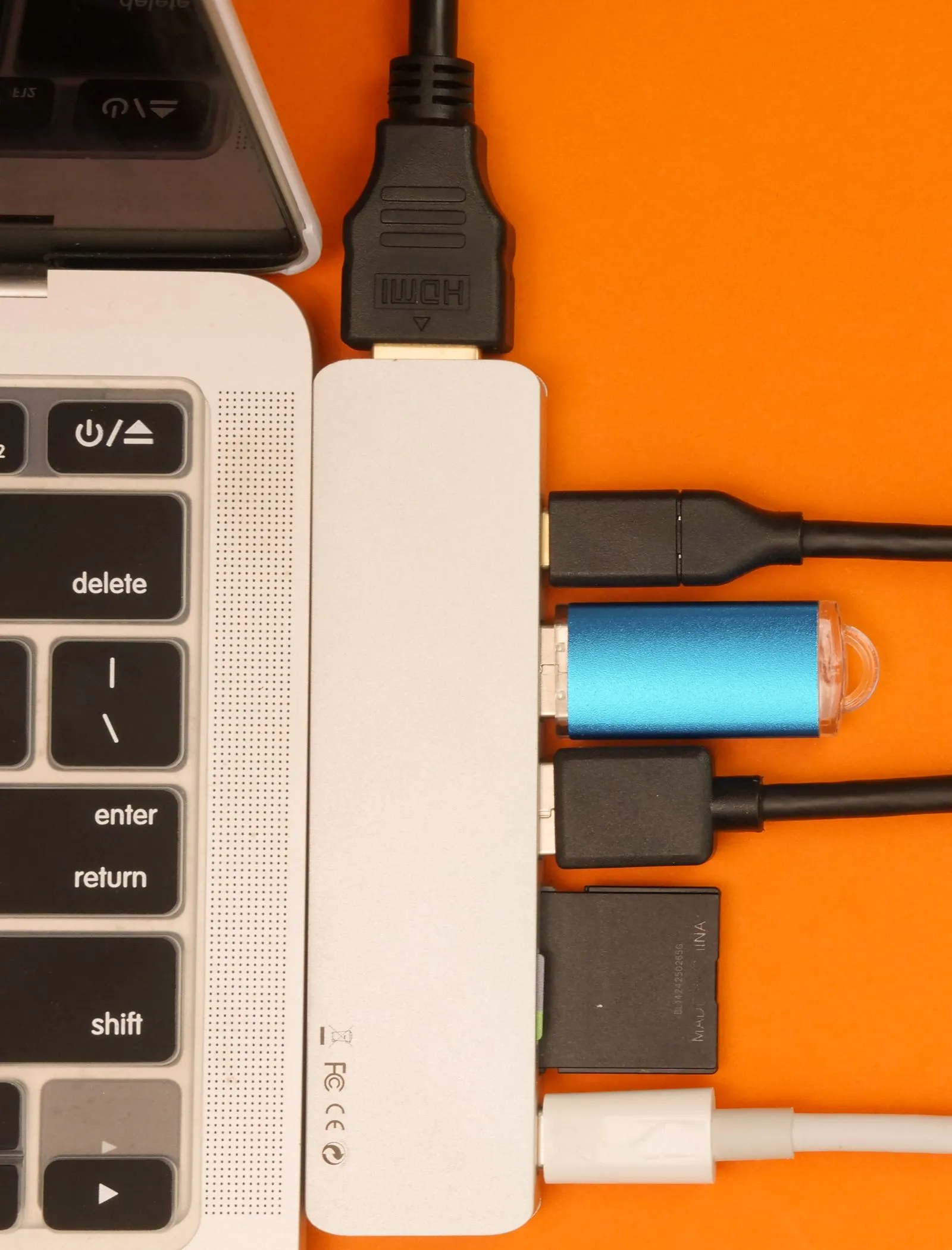
A USB-C hub is how a laptop becomes a one-cable desk. Plug in one lead and you get the monitor, the keyboard, the drive and power. The catch is that hubs look identical in listing photos and differ wildly in what they actually pass through.
Chargers and cables have the same problem. The big number on the box is rarely the number that matters. Here’s what to check, in order.
4 checks before buying a USB-C hub
1. Pass-through power of 85W or more
Pass-through Power Delivery means you plug the laptop charger into the hub and the hub passes power on to the laptop. The hub keeps some of it to run itself, typically in the 10–15W range, and more with a lot plugged in. So a 100W rating on the hub’s charging port often means around 85W actually reaching the laptop.
Look for 85W or more of pass-through if your laptop is anything above an ultralight. If the spec sheet only lists the input figure, assume the laptop gets less.
2. HDMI that runs 4K at 60Hz, not 30
Plenty of cheaper hubs drive a 4K monitor at only 30Hz. The picture is sharp, but the mouse cursor and scrolling feel like wading through syrup. For a work monitor, 4K at 60Hz is the minimum.
Getting it depends on three things: the hub’s HDMI chip (HDMI 2.0 or later for 4K60), your laptop’s USB-C port supporting video output (DisplayPort Alt Mode, or USB4), and the monitor itself. The fine print to look for: on some hubs, running 4K at 60Hz uses all the port’s high-speed lanes, and the USB ports drop to USB 2.0 speeds. Good spec sheets say so.
3. At least one 10 Gbps USB port
USB ports on hubs are commonly 5 Gbps (USB 3.2 Gen 1) or 10 Gbps (USB 3.2 Gen 2). For a keyboard and mouse, it doesn’t matter. For an external SSD, 10 Gbps roughly doubles the ceiling. One fast port is enough for most desks.
4. Ethernet if your Wi-Fi drops
A wired port is the boring fix for video calls that stutter. Gigabit Ethernet is standard on hubs. Some offer 2.5 Gbps, which only helps if your router or switch supports it.
| Check | Look for | The trap |
|---|---|---|
| Pass-through power | 85W or more to the laptop | Hub keeps 10–15W for itself |
| Video | 4K at 60Hz | Cheap hubs stop at 30Hz |
| USB data | One port at 10 Gbps | 4K60 may drop USB to 2.0 speeds |
| Network | Gigabit Ethernet | Rarely listed on the smallest hubs |
What wattage a laptop needs
The laptop’s own charger is the best guide: whatever wattage it shipped with is what it wants under load. As rough bands, thin-and-light laptops use 30–65W, mid-size ones 65–100W, and larger performance laptops more than that. USB Power Delivery tops out at 100W on standard cables and 240W with the newer extended power range.
A smaller charger usually still works. It just charges slowly, and under heavy load the battery may drain while plugged in.
Desk chargers: read watts per port
A desk charger replaces a pile of plugs. Four checks:
- Add up what your devices draw and make sure the total covers it.
- 65W or more from one port if a laptop is on the list.
- USB-C ports, not just USB-A. Most new gear charges over USB-C.
- Find the per-port watts on the spec sheet. A 65W two-port charger rarely gives 65W to each. Plug in both and it often splits, something like 45W and 20W. That’s the number that decides whether the laptop charges properly.
GaN chargers use gallium nitride instead of silicon in the power electronics, which lets them be noticeably smaller for the same wattage. The label says what’s inside. It doesn’t make the watts any better.
USB-C cable lengths for a desk
Buy cables by the run, not by the pack. Too long means a coil of slack behind the desk.
| Length | Suits |
|---|---|
| 0.3 m (about 1 ft) | A hub sitting right next to the laptop |
| 1 m (about 3 ft) | Keyboard to computer |
| 2 m (about 6.5 ft) | Monitor, or a charger reaching the wall |
| 3 m (about 10 ft) | Down to a floor outlet |
Measure the path, add a little, stop there. One real limit: passive USB-C cables that carry 10 Gbps data are generally 1 m or shorter, and the fastest USB4 cables shorter still. Long cables are usually USB 2.0 for data, which is fine for charging and a keyboard, and slow for a drive.
Cable ratings: 60W vs 100W and 240W
A USB-C cable without an e-marker chip is limited to 3 amps, which works out to 60W. For 100W, the cable needs to be rated for 5 amps and carry an e-marker. For the extended range up to 240W, it needs a 240W rating. A 60W cable on a 100W charger won’t damage anything. The laptop just gets 60W. Most cables print the rating on the packaging, and increasingly on the plug.
4 checks before buying a desk power strip
The piece of desk kit nobody photographs and everybody needs.
- A surge rating of 1,000 joules or more. Joules measure how much surge energy the strip can absorb over its life. Surge protection wears down with each hit, and many strips have a light that goes out when it’s spent.
- Space between outlets. Chargers and adapters with chunky bricks block the socket next door. Look for wider spacing or a few outlets set sideways.
- Mounting slots. Keyhole slots on the back let you screw it under the desk or into a cable tray, off the floor.
- A switch you can reach seated. If the switch ends up under the desk, you’ll never use it.
Check for a safety listing too: UL in the US, CSA or cUL in Canada.
Gifts for someone whose phone always dies
If this guide describes a person rather than a desk: a charging stand for the desk so the phone tops up while they work, a pocket power bank for the bag, a 2 m braided cable that reaches from the wall to the bed or couch, and a 3-in-1 charger for the nightstand that handles phone, watch and earbuds at once. For a power bank that flies, stay under 100 Wh, the usual airline carry-on limit.
The short version
- Hub: 85W+ pass-through, 4K at 60Hz, one 10 Gbps port, Ethernet if Wi-Fi is flaky.
- Match the charger to the laptop’s original wattage, and read the per-port figure.
- Buy cables to the length of the run; long ones are usually slow for data.
- 60W cables are fine for phones; laptops over 60W need a 5 A e-marked cable.
- Power strip: 1,000 joules or more, wide outlet spacing, and a way to mount it.